
HTC & Windows Mobile Technology

↑ Grab this Headline Animator

Showing posts with label tip. Show all posts

Thursday, October 1, 2009

Google Sync: Now with push Gmail support


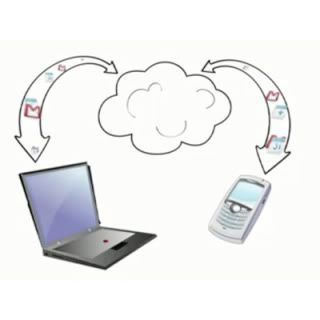
Google's Gmail now supports Push
It is likely that you have, even if you don’t use regularly a Gmail email account.
Gmail by Google
You have always been able to connect to the account via a mobile device using the traditional pull mechanism, that pulls new emails down to your handset, thus enabling you to read and respond to your email whilst away from the PC.

A technology that has long been available is ‘push’ email which results in any email that hits your inbox being directly sent to your mobile device, as opposed to the pull mechanism where emails were only received on the mobile device when you asked it to.

Push technology solutions only work if your mobile device has the technology and your email provider offers push services.

Windows Mobile devices have long supported such technology, but your email provider may have not provided the push facility. Very few online/ISP email services do unless you pay a premium.

To offer push services there needs to be an exchange server, which can be configured to push emails to users mobile devices as and when emails arrive.  This setup is common for businesses and ISP’s have always had exchange servers, but very few offered push email services.

The most demanding user will have subscribed to a service provider (usually having paid a reasonable fee) to get such.  This way any mails sent to that users email address got directly sent to their mobile device that they had configured to connect to it, the moment the email arrived.

The majority of email users will not have subscribed to such or even contemplated the need to have the email, the moment it arrives, often waiting an hour or more to check their mail.

However you can now get ‘push’ email services for FREE from Google’s Gmail service.
Announced yesterday the online giant has enabled this service for all users of Gmail.  If you have a Windows Mobile, iPhone or iPod Touch device you can take advantage of this service and get your emails even quicker than before.

This sync solution works with your phone’s native email application so there’s no additional software needed. Only interested in syncing your Gmail, but not your Calendar? Google Sync allows you to sync just your Contacts, Calendar, or Gmail, or any combination of the three.

To try Google Sync, visit m.google.com/sync from your computer.

To set up you mobile device, find out how to HERE

Important! Google Sync uses the Microsoft® Exchange ActiveSync® protocol. When setting up a new Exchange ActiveSync account on your Windows Mobile device, existing data may be removed from your phone. Please make sure to back up before you set up Google Sync.

Bookmark and Share

Wednesday, August 19, 2009

How to bring drowned gadgets back to life


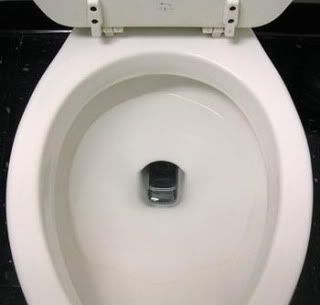
If you accidentally drowned your shiny new widget, don't stress as you're not alone. I've had near misses but never gone the whole way. I know some if not most of you have accidently done this to your gadgets.

In the UK, those enterprising Brits manage to drop a staggering 850,000 phones down the toilet in 2007 and this number will have only grown since then.

Luckily in many cases a drowned gadget can be resuscitated back to life using several simple steps. Old wives tales and urban myths abound on how to dry and fix a sodden phone (e.g. packing phones in uncooked rice or baking it in an oven etc.), yet most of these will at best deliver mixed results or more seriously can potentially be dangerous. Here's a quick step by step guide to safely attempting to bring back a drowned phone or PDA.

1. Don't turn the device back on!!! I know this is the most 'logical' thing to do to check whether it is ok and tempting to do so. As soon as possible (preferably as soon as a dunking has happened), remove the device's battery to prevent any electrical shorts from creating permanent damage and once the battery is out, shake out any excess water.

2. Dry your gadget using a soft absorbent towel. Remove any battery covers, memory cards etc. Grabbing a blow dryer, set it to low heat and position it to blow on your widget from approximately 100cm away. Keep an eye on it for the first 10-15 mins, checking to ensure it doesn't get too hot. If the device gets too hot to touch, turn off the blow dryer immediately, leaving your gizmo to cool down. Increase the distance between the blow dryer and your device and start again. You'll probably need to do this for at least an hour, maybe even 2 - 3 hours.

3. Next, drop your device into a small container and loosely pack it with cotton balls. Whilst some suggest using rice, cotton balls won't leave a starchy residue, and won't gunk up your device. Ideally you should leave it packed in cotton balls sitting in an airing cupboard for at least 24 hours, longer if necessary.

4. By now your device should be dry and the cotton balls damp. Check the device thoroughly for water, if any can be seen behind its screen, keys and other parts, repeat step3 until there is no trace of water.

Assuming your device looks and feels dry, re-insert its battery back and try switching it on. If it won't start, your battery could be dead and might need to be charged. Before doing any charging, make sure that the battery is a 110 per cent dry before charging it. As there may be some moisture still inside the device do not connect it to its power adaptor/charger to see if it works as this could permanently damage your device, blow a fuse or make your hair stand on end.

5. If device refuses to work after 24 hours, repack it in cotton balls, put it in the airing cupboard and give it another 48 hours before trying to restart it. If your device still refuses to work, use its power adaptor/charger and see if that works. If at that point it still doesn't want to play ball, you'll probably need accept defeat.

Bookmark and Share

Monday, June 15, 2009

.net v3.7 leaked!


Seems like the guys at xda have found .net v3.7 in one of the leaked windows mobile 6.5 ROMS. If you don't know what it is, it is covered here. I'm not too sure of the changelog or enhancements to this update since it's not even on the microsoft site yet.

WMExperts via PPCGeeks & xda-developers

xda-developers user XQ55 has made an all in one cab of .net version 2-3.7. Dunno why he needed to do it, but thanks

Bookmark and Share

Sunday, January 18, 2009

How to sync & install programs to your Touch Pro or other Windows Mobile devices

I thought this should go in here somewhere. If you've just bought a new Touch Pro or any Windows mobile device, and this was your 1st, chances are you wouldn't know how to install programs into it. Windows mobile is windows based, but it may not be as straight forward.

First of all, download Activesync (on Windows XP) or Windows Mobile Device Center (WMDC) (on Windows Vista). Install your version.

Activesync for Windows XP and below Windows Mobile Device Center (WMDC) for Windows Vista


Now connect your PDA with the sync cable and it will prompt that it will sync with your device. Tick what you want synced & your data will be synced. Simple.

Now to install programs. There are two file types that programs usually come in with. The .EXE and the .CAB files.

.EXE files (executable files) are run from the computer and the application will be installed to your phone the next time you sync it. If you get an error that the .EXE file is not a valid win32 application, then copy that .EXE to your device and it should run from there.

.CAB files (cabinet files), on the other hand, require to be imported to your phone. Connect your phone to your PC via USB as mentioned above, and copy the .CAB to the phone's memory (either sd card or main memory). Run the pasted file on your phone using the built-in file explorer and follow the on-screen instructions to install that particular program.

Bookmark and Share

Thursday, January 15, 2009

Charging your Touch Pro faster via USB

Just read this on the fuzemobility forums. I will give this a try. You readers, try this & leave a comment to see if it did or did not work.

If you want to have faster charging of your Touch Pro/Fuze etc. via USB, once you connect your TP, it will ask what would you like to do e.g. active sync etc.

Choose Disk Drive and then hit the power button to lock the screen it unmounts the drive and seems to charge the Touch Pro faster.

Bookmark and Share

Tip: How to add 3G On/Off to your Comm Manager

I don't use 3G alot, heck I'm on a pay-as-you-go plan or pre-paid plan. It costs shit loads of money to use 3G or even GPRS so I don't really need it. I also don't need my Touch Pro to try & find a 3G signal if I'm not in a 3G cell, like where I am. Doing this eats some precious battery life. Some clever folks found a way to add an On/Off button for 3G in the Comm Manager:

1. Install Advanced Configuration tool. A GUI based configuration tool, which I think most of you know by now.

2. Once installed, go to the Phone settings and enable Show Band Page.

3. Then go to Menu (right soft key), Comm Manager and check the 3G box. You will need to disable another button since TF3D only has 6 buttons. Since I don't use Push Mail, I disabled it.

4. Go to OK > Done > Soft reset.

After it resets & your Touch Pro is on, go to Settings, Communications and you should see a 3G tab, disable it and your battery should last longer. Your Touch Pro will use GPRS since it is always available.

Bookmark and Share

How to see & edit Windows PPC folder in Windows PC

We all can use an explorer program like Total Commander to see what's inside our PPC's. It's a pain in the ass if you want to copy/delete/paste a lot of stuff using TC to do it. Luckily during active sync you can browse the contents of your PPC but not your windows folder. One forum member from PPCgeeks has shown a simple 'trick' or tip to enable the Windows folder to be seen on Windows PC e.g. to delete/add some TF3D files etc. It's so simple, this is the way I used to hide my pr0n collection... heheh

1. Connect via active sync/WMDC
2. Open up My Computer or Windows Explorer
3. Goto folder options:

Win XP - Tools>Folder options, click on the View tab
Win Vista - Click Organise on top left hand corner>Folder & search options>click on the View tab

4. Make sure to click the radio button with Show hidden files and folders.
5. Next remove the checkmark for Hide protected operating system files (recommended)
6. You will get a dialog box with a warning, click yes, then OK
7. Go back to your device on my computer, you should now see the windows folder

For some pics of this for Win Vista, go here

Bookmark and Share

Saturday, January 10, 2009

Reg Edit to set Talk key to rotate screen manually


Another registry tweak:

Here's a reg hack to manually rotate your screen, only when desired.
In Settings/Buttons/ one used to be able to assign a button to . This feature is hidden on the Touch Pro.

To get it back:
Using a Registry editor, go to:
HKeyLocalMachine/System/GDI/Rotation
Change the "HideOrientationUI" from 1 to 0

Now you can remap the talk key to do this on long press.

Bookmark and Share

Monday, January 5, 2009

Quick Tip: Enable the large Start menu on landscape

Since I got my Touch Pro, I found the large Start menu from HTC to be a great improvement over the original one. For some reason though, the start menu is back to normal when you use the device in landscape.

Thankfully, the fix is easy, just follow the steps below:

1. With a registry editor (Total Commander etc) navigate to the following folder:

HKLM\Software\HTC\EnlargeMenu

2. Change the DisableLandscape value from its current value (1) to 0.
3. Softreset your device

Bookmark and Share

tf3d weather trick

The weather animations for TouchFLO 3D are super slick, but what if you want to impress your friends by showing off all of the animations? There's a little trick you can do to have the weather tab run through all of the animations consecutively. Just tap the area to the left, and then the right, of where it says "Weather" in TouchFLO 3D (as shown below), and you'll see all of the animations!

TF3D Weather trick - impress your friends! Press area 1 then 2

Bookmark and Share

.net v3.5 tweak


This little tweak will make any win mo pda/phone faster. Even win mo 6.1 is supplied with .net v2.

A bit of background:

The Microsoft .NET Compact Framework (.NET CF) is a version of the .NET Framework that is designed to run on Windows CE based mobile/embedded devices such as PDAs, mobile phones, factory controllers, set-top boxes, etc. The .NET Compact Framework uses some of the same class libraries as the full .NET Framework and also a few libraries designed specifically for mobile devices such as Windows CE InputPanel.

It is possible to develop applications which use the .NET Compact Framework in Visual Studio.NET 2003, in Visual Studio 2005 and in Visual Studio 2008, in C# or Visual Basic.NET. The resulting applications are designed to run on a special, mobile-device, high performance JIT compiler.

To be able to run applications powered by the .NET Compact Framework, the platform must support the Microsoft .NET Compact Framework runtime. Some operating systems which do include .NET CF are Windows CE 4.1, Microsoft Pocket PC, Microsoft Pocket PC 2002 and Smartphone 2003. .NET Compact Framework applications can be run on desktop computers with the full .NET Framework as long as they only access the shared parts of both frameworks, though their user interface can not be upgraded to look like that of an application developed for desktop PCs.

The Microsoft® .NET Compact Framework 3.5 Redistributable contains the common language runtime and class libraries built for the .NET Compact Framework. In addition to version 3.5 support, it also supports applications developed for version 1.0 and 2.0. The .NET Compact Framework 3.5 provides new features such as Windows Communication Foundation, LINQ, SoundPlayer, new runtime tool support, and many other features.

A version of the .NET Compact Framework is also available for the Xbox 360 console. While it features the same runtime as the regular .NET CF, only a subset of the class library is available.[1] This version is used by XNA Framework to run managed games on the console. There are other limitations as well, such as the number of threads being limited to 256.[2] Unlike other versions of .NET CF, the Xbox 360 version allows setting processor affinity to threads created.[3] The threads are scheduled among four concurrent threads running on the multiple processor cores of the system.[2]

You'll be aware that it offers a number of enhancements in features, stability and performance, and you'll likely also know that it provides full backwards compatability with previous versions of the Compact Framework. What you may NOT know is that when CF 3.5 is installed on a device, applications that target previous versions of the Compact Framework will continue to run against the old versions, and 3.5 and previous versions will live side by side on the device. Only when new devices come along will we see ONLY 3.5 on a device.

source : wikipedia

New Features Included in the netCF 3.5 January CTP:
• System.IO.Compression support, including support for HTTP compression.
• Support for a subset of Linq’s Standard Query Operators.
• SoundPlayer support using WaveOut allowing for multiple sounds to play at once.
• New API in Microsoft.WindowsCE.Forms for easily distinguishing Smartphone and Pocket PC.
• Allow Nested FuncEval's.
• Enhanced logging for interop functionality with native code.
• Stack Trace Enhancements.
• GAC Improvements.
• Allow for StrongName keys greater than 1024 long.
• To improved logging of finalizer activities to enhance product supportability.
• Allow log files to be read at runtime.

source : .NET Compact Framework Team


Get these 2 files:

.net v3.5

.net config tool

Copy these 2 files on your ppc & install.

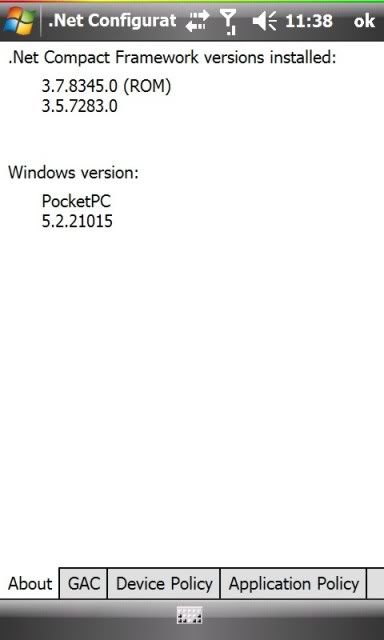
Open the NetCF Tool > Device Policy > select NetCF 3.5.7283 from the drop down menu and click apply.

Reset your device.

Screens:


.net v3.5 configuration page

Bookmark and Share

Wednesday, December 31, 2008

Battery tip

Here some tip for battery issue on touch pro.Might be help you all .Thank you.
It has been brought to my attention that there is a glitch in Windows Mobile phones that has been there since WM5… Apparently when a phone is first used the firmware looks at the charge on the battery as a reference point as to how long to charge it for until it is completely charged. So for example, if you have a WM phone that has a half charge on the battery when you first plug it in the device will only ever charge up 50% of the battery. You need to basically set the phone to put that marker in place when the phone is completely dead to gain the most battery performance you can.

Here is the best practice for doing this:
----------------------------------------------------------
1. Let the phone completely die on battery power.
2. Plug the phone in and charge for only about 5 minutes (just long enough it can boot up completely)
3. Perform a hard reset of the device, this is done differently depending on the phone model.
4. Then place the phone on charge for at least 8hrs.
---------------------------------------------------------

This should reset that marker that the operating system places on the battery charge cycle and will allow the phone to completely charge the battery rather than only a % of a full charge.

Bookmark and Share
Free Advertising